GPT Image 2.5 Flare AI Image Generator
GPT Image 2.5 Flare supports text-led image generation and reference-guided editing. Use the available quality, image-size, and background controls to shape the request.
Create Images with GPT Image 2.5 Flare
Turn prompts and reference images into polished visuals with GPT Image 2.5 Flare.
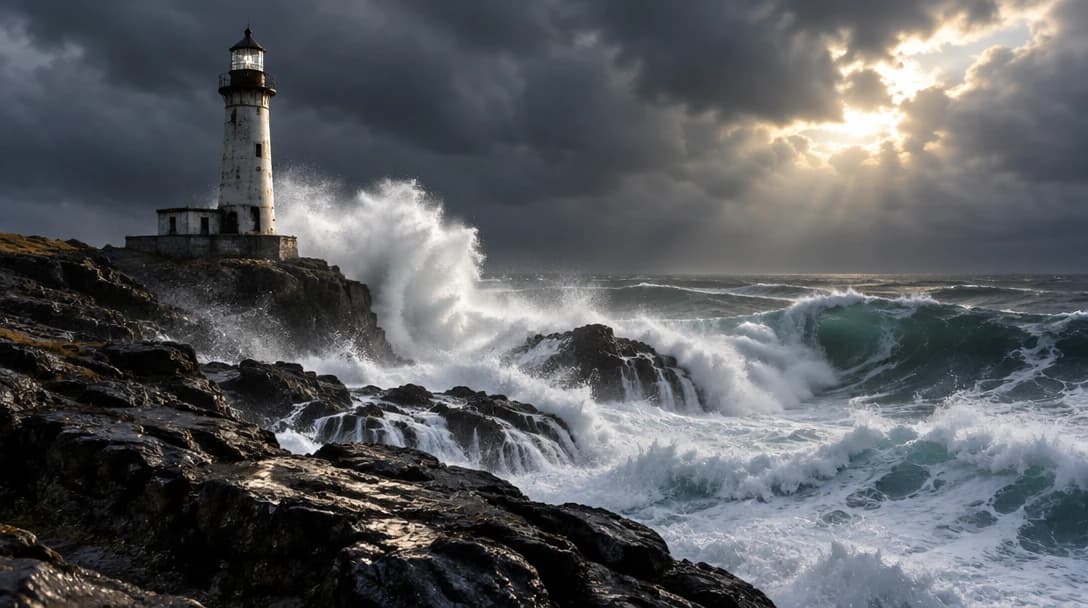
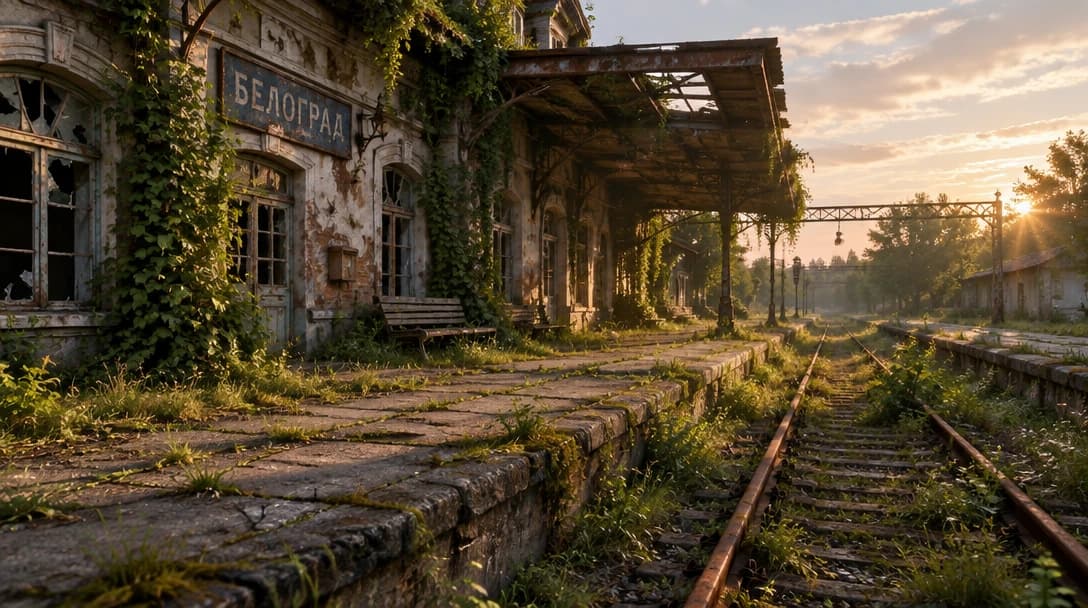
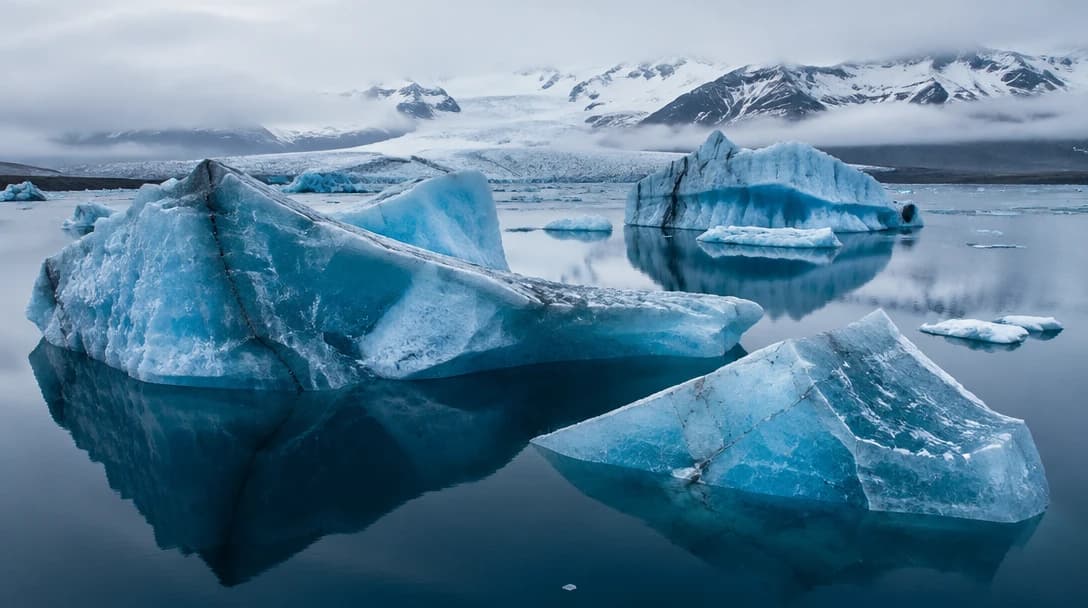
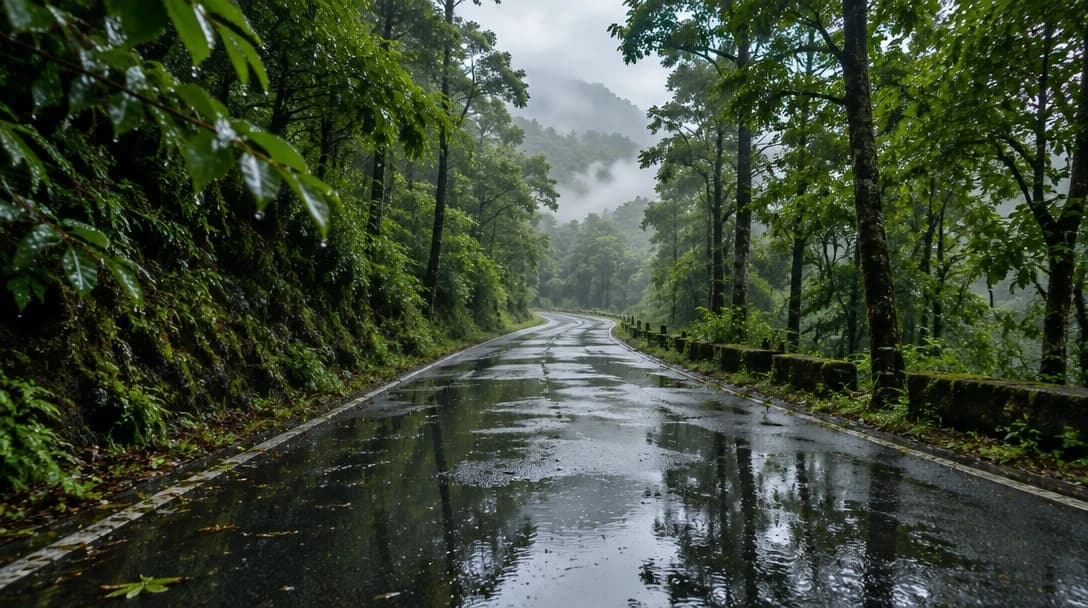
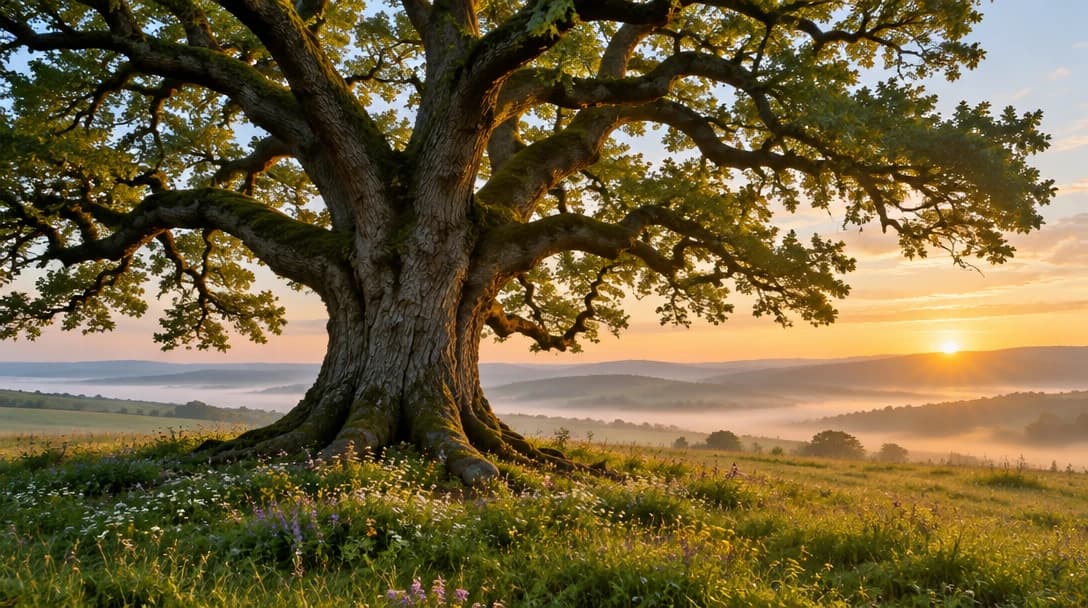
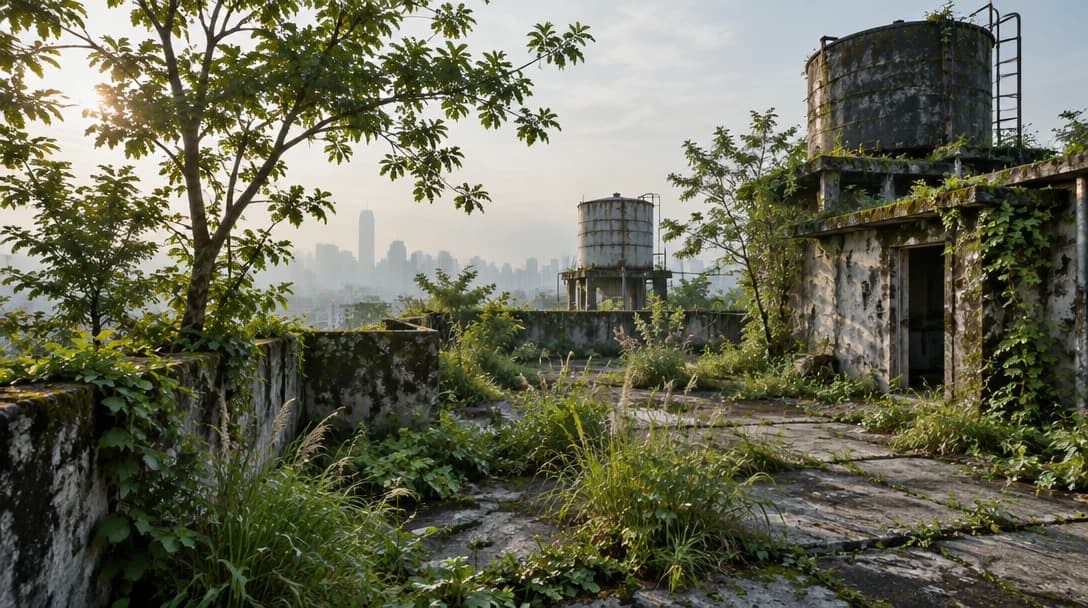
How GPT Image 2.5 Flare Works
GPT Image 2.5 Flare turns a prompt or reference image into a new visual with quality, size, and background settings.
Enter Your Prompt
- State the subject, visual treatment, composition, and important details. For an image edit, add references and explain the intended changes rather than relying on a short style label.
Review the Available Controls
- Choose from the quality, image-size, and background controls made available for the active model. RemixAI updates the credit estimate as supported settings change.
Generate and Refine
- Create the image, review the result, then adjust the prompt, references, or settings to generate another version.
Key Features of GPT Image 2.5 Flare
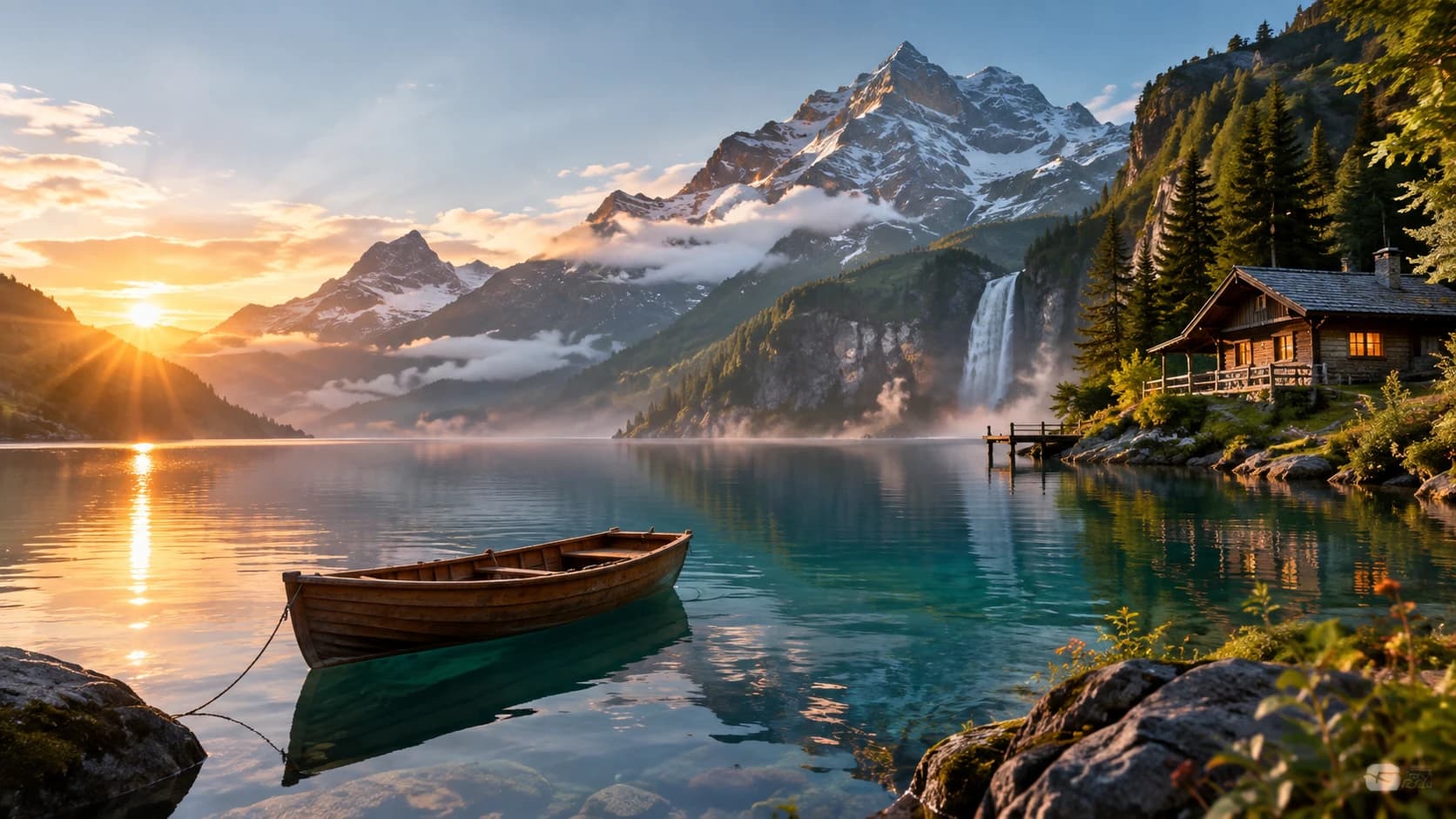
Text-to-Image and Image-to-Image
Create a new image from a written prompt, or start from reference images and describe the changes you want.
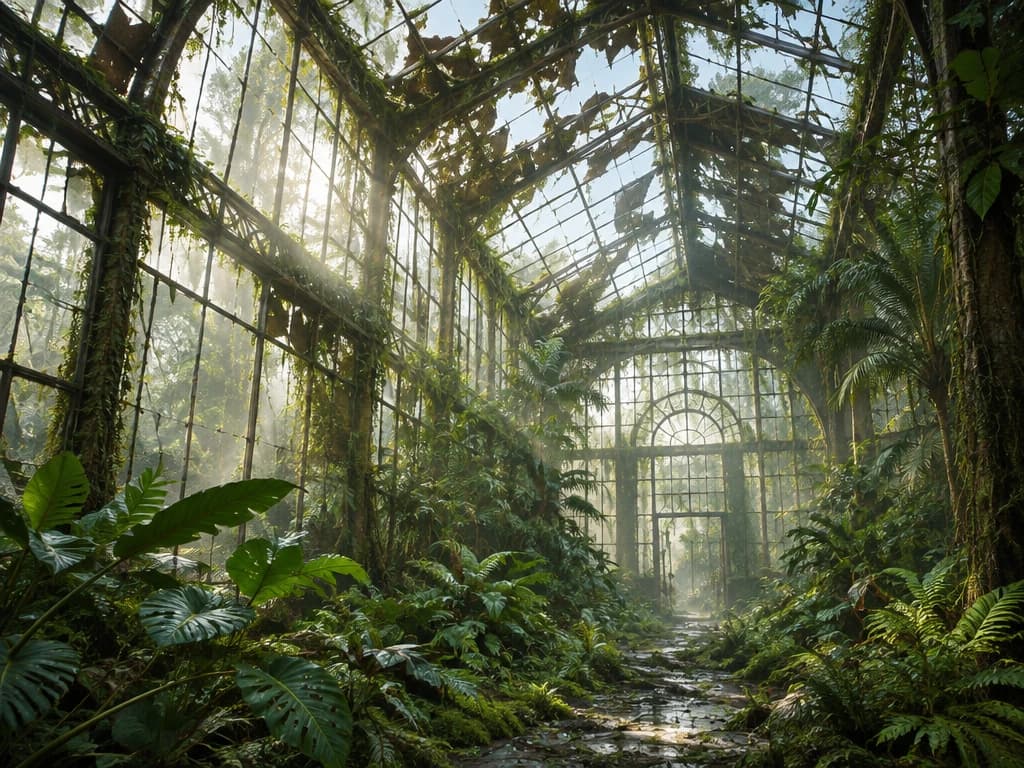
Quality Selection
The page provides auto, low, medium, high, extra high, and max quality options. Compare the current credit estimate before choosing the setting you want to use.
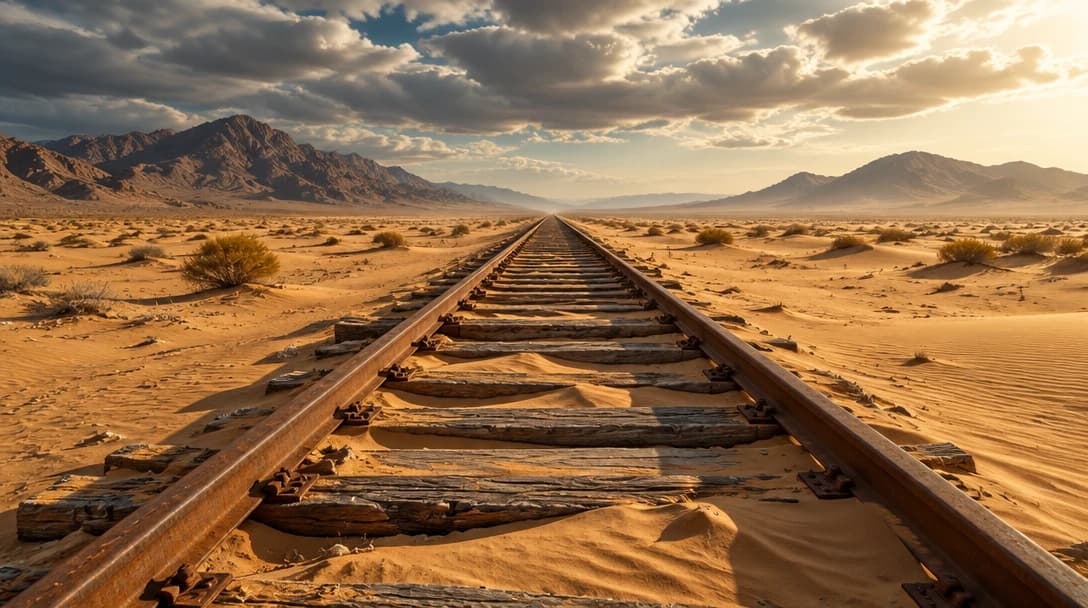
Flexible Image Sizes
Generate square, portrait, and landscape formats, including 4:3 and 16:9 options, for different content layouts.
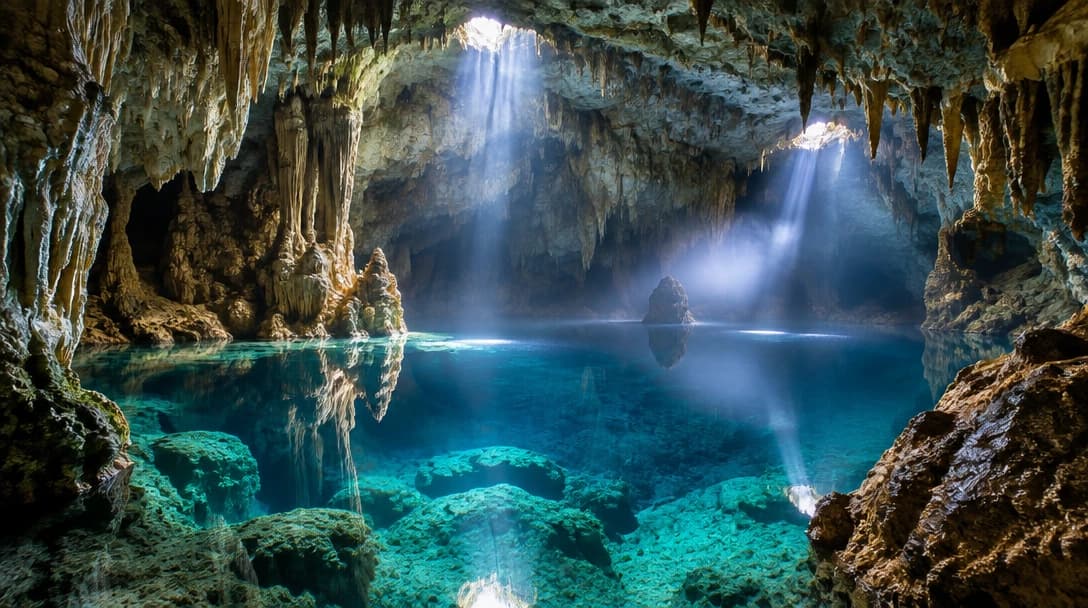
Background Settings
Use the background setting available in the active controls when it matches the intended use of the image. Check the result before moving it into another creative workflow.
Explore More Image Models
Explore different versions of GPT Image 2.5 Flare
Frequently Asked Questions
Get clear answers to common questions about using RemixAI.